
How to notify your employees of new actions
Notifications Setup allows HR admins to set up notifications, assign who will receive them and when.
User Menu -> System Preferences -> Notification Setup
Through this page, HR admins will be able to:
- Turn on/off the email notifications, as needed.
- Specify the number of days in which the notification email will be sent before the expiry of a certain pending matter – such as the end of the probation period.
- Identify the employees who will receive these notifications.
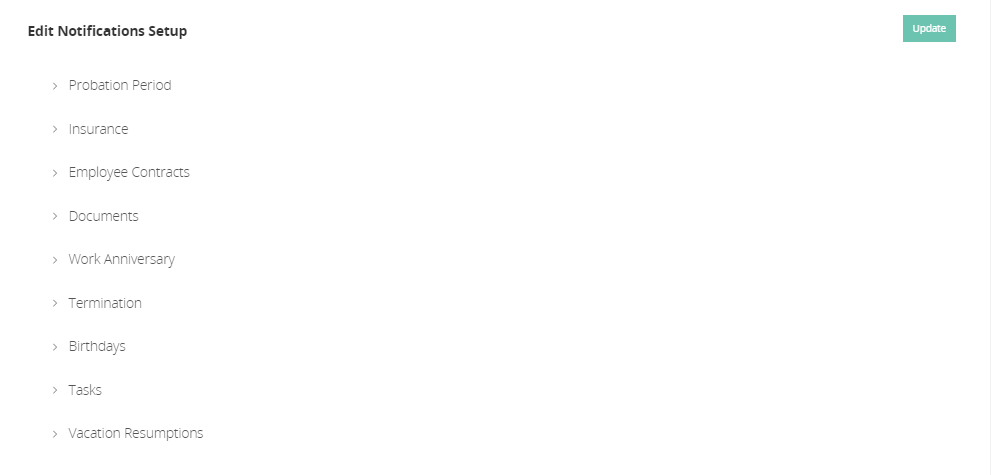
- Choose the action type, and then turn on the notifications for this type.

- Enter the number of days on which you or other users will receive the notification email before the actual date of the action as shown below:
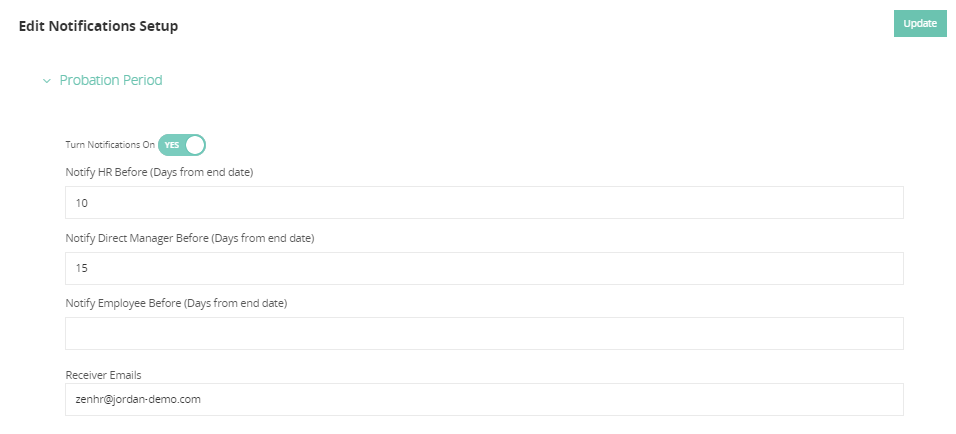
- By filling out the above fields; the HR admin, direct manager, and the employee will receive a notification email before the end of the probation period by defining a number of days before the actual date of the pending matter so that the notification will be sent ahead of time.
- Now you can specify who of your HR Admins will receive certain notification emails by adding their emails separated by a semicolon as shown above.
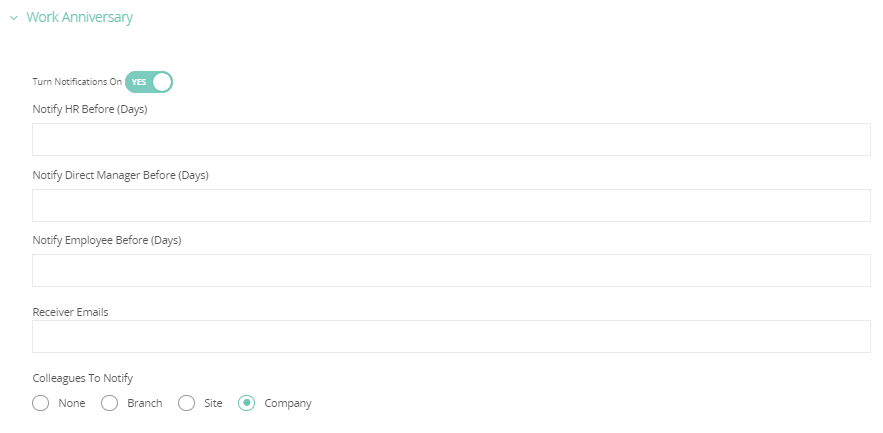
- In certain types like work anniversaries and birthdays, you will find an extra option; that allows you to decide if the employee’s colleagues will receive an email or not and who will receive it.
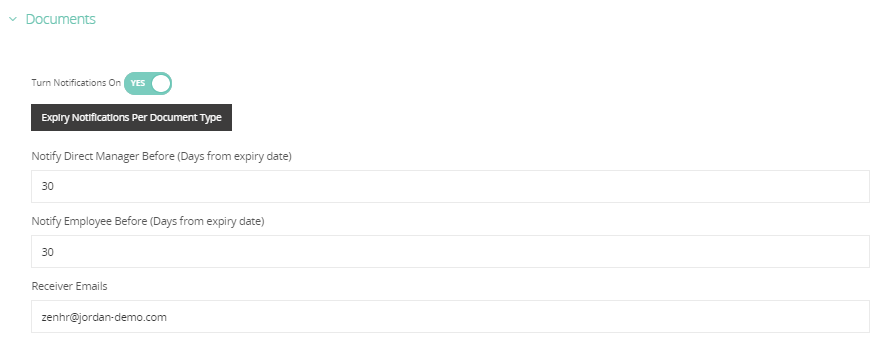
- For Documents, you will be able to choose the notification date based on the document type by clicking on “Expiry Notifications per Document Type”.
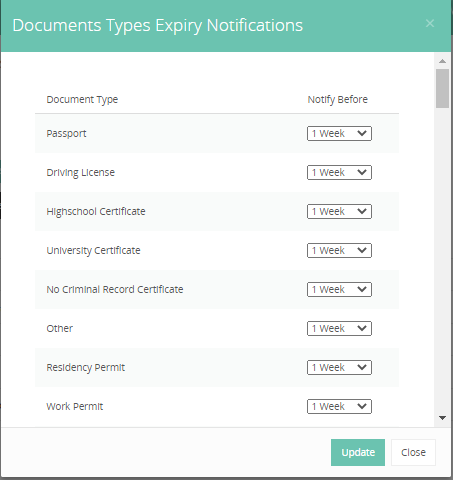
*Note: Your notifications setup is deactivated by default, so please make sure to turn it on if needed.
Comments
0 comments
Please sign in to leave a comment.