
A new feature has been added to ZenHR, allowing HR admins to automate and auto-apply overtime transactions based on the employees’ shifts and the actual working hours.
TABLE OF CONTENTS
How to Activate This Feature
How to set up this feature
User Menu -> System Preferences -> Attendance and Time Tracking -> Setup
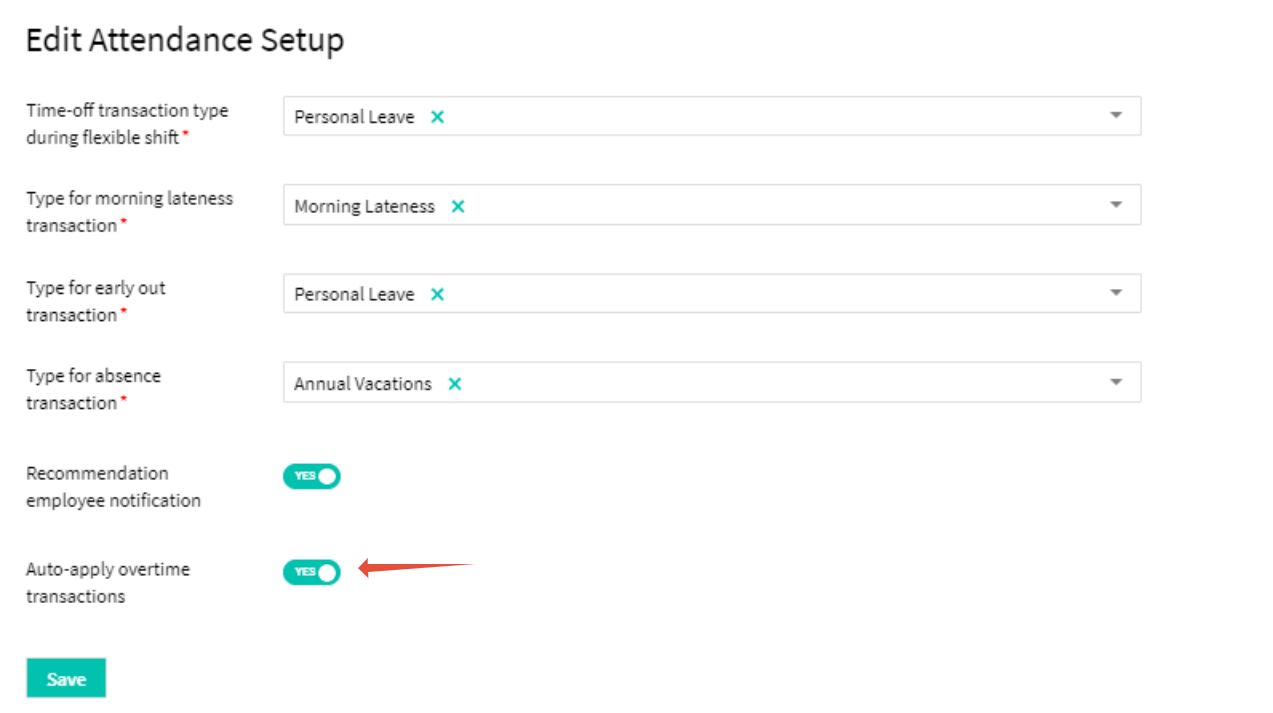
A new setting has been added to Attendance Setup, allowing admins to activate or deactivate this feature.
How to apply the auto-approved overtime
Main Menu -> Time Management -> Attendance and Time Tracking -> Recommendations
Once activated, a new option will appear on the “Recommendations” page, allowing you to limit the auto-applied overtime transactions based on the employees’ shifts and the actual working hours.
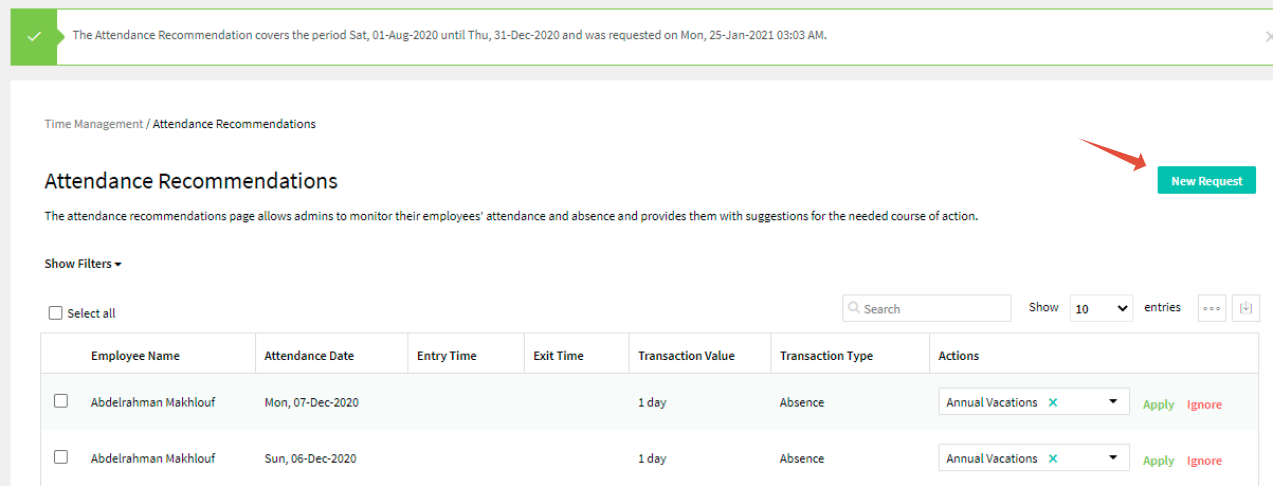
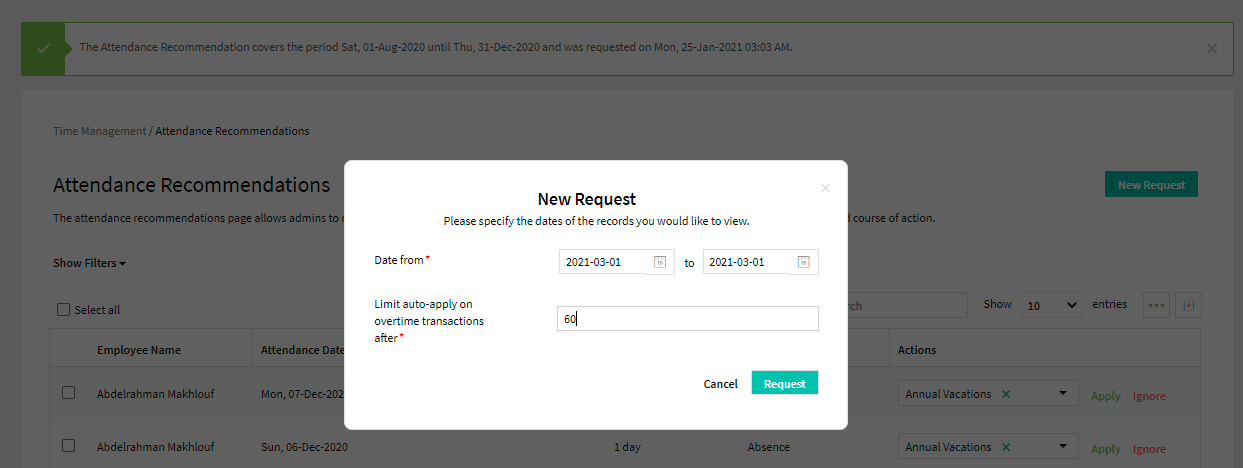
By setting a limit on the dates and number of minutes, click the Request button, and all overtime transactions with a duration less than the one added in the field will be generated and added to the page “Manage Overtime page”. The auto-applied transactions will be locked until overtime calculations are complete.
Once the calculations are complete, a message will appear to the user, allowing him/her to check all the generated records by downloading an excel sheet.

By clicking on download, you can download an excel sheet showing all the auto-applied recommended overtime transactions.

How to check the auto-approved overtime
Main Menu -> Payroll -> Manage Overtime
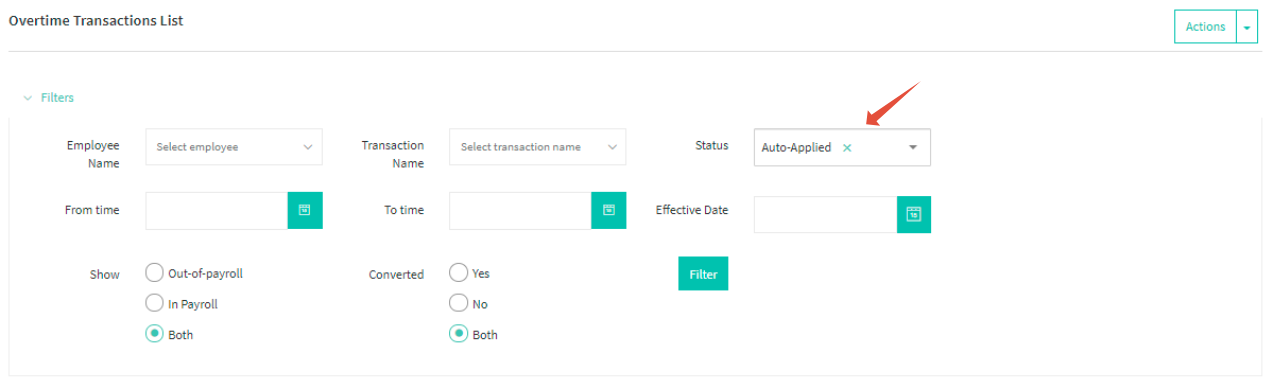
We have added a new filter to the “Manger Overtime” page, allowing admin users to check the auto-applied overtime transactions and export them in excel.
Comments
0 comments
Please sign in to leave a comment.