
Overtime Requests on ZenHR
In this user manual, we will go through the steps an employee follows to make overtime requests through ZenHR.
Overtime Requests
Main Menu -> Payroll -> My Salaries
Through this page, you will be able to see a list of your overtime requests, submit a new overtime request, and check the status of your previous requests.
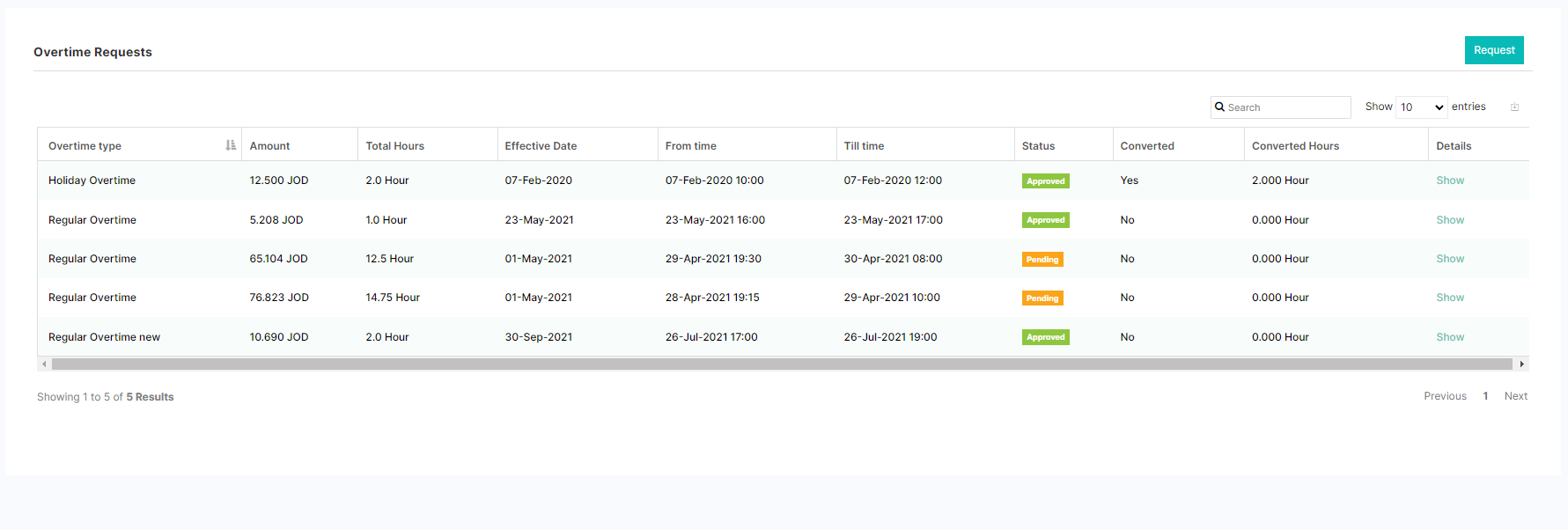
To submit a new overtime request, click on the “Request” button at the right top corner of the page, and you will be directed to the “Request Overtime” page as shown below:
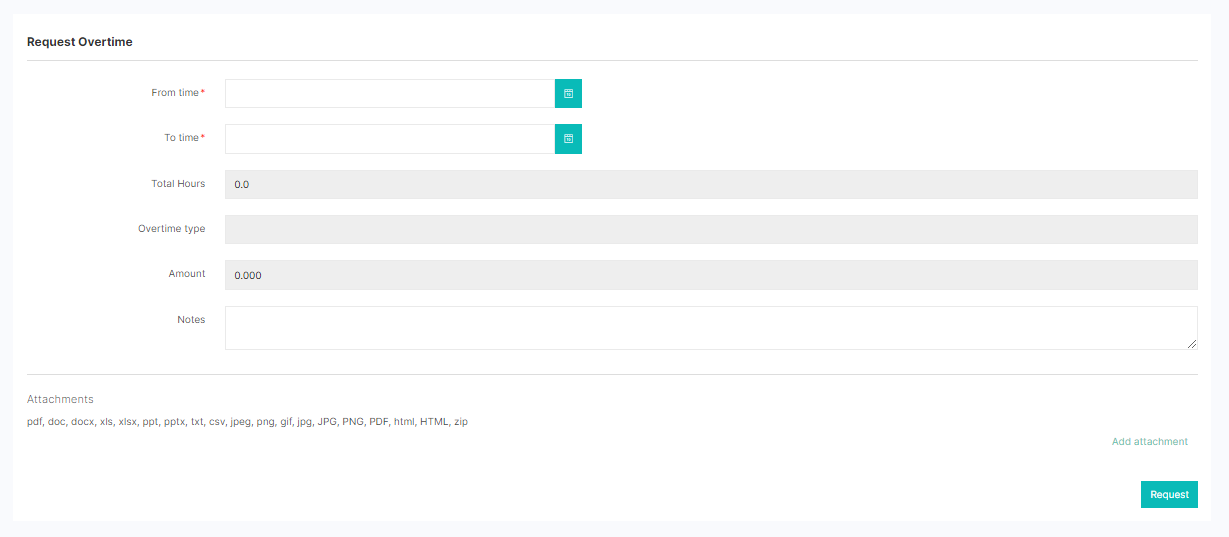
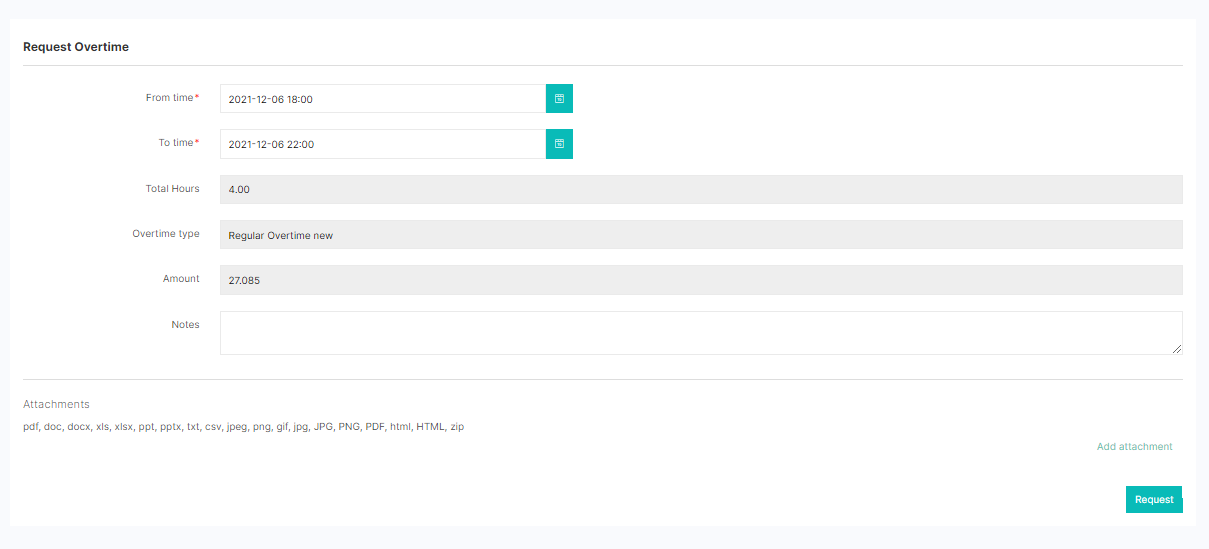
Check the below example which explains how you can make an overtime request.
| Field Name | Description |
| From time | Overtime start date and time. |
| To time | Overtime end date and time. |
| Total Hours | Overtime hours (It will be calculated automatically depending on overtime “From time” and “To time”). |
| Overtime type | This will be automatically selected depending on the overtime date (Regular Overtime, Weekend Overtime, and Holiday Overtime). |
| Amount | Overtime transaction value (It will be calculated automatically depending on the overtime date and rate). |
| Notes | This can be used to explain why you are requesting this overtime. |
| Attachments | This can be used to attach any documents related to your overtime request. |
After filling in all the fields, click on the “Request” button at the end of the page.
*Note: Your request will go through an approval cycle and you will be notified once it is approved/rejected. It will be added to your salary depending on the overtime “From time” and “To time” dates.
Comments
0 comments
Please sign in to leave a comment.